
Bet u cant sort this one out


(dodgyman_00) #1

My texures in ET look really bad. There appears to be no blending and instead of dark brown and black i get a dark green. The colours are really messed up especially on weapon and player models. I re-installed the drivers for my geforce mx440 to no effect.
Here are some screens (they look a lot worse in game!)

You may need to copy and paste the links

http://www.geocities.com/elastomania_02/2004-02-21-113143-fueldump.jpg

http://www.geocities.com/elastomania_02/2004-02-21-105533-radar.jpg

Its so bad in game i just have to stop playing sometimes. Whats really annoying is, i have noticed it in other games now such as the new “painkiller” or half-life, to a lesser extent. HL has always been fine b4i installed ET though.


(chr0nicles) #2

I can’t look at the picture’s since the page doesnt exist, but what you are telling seems like the “Danger green” you get when your temperature is to high, open up your case check the fans if they are running and try playing with the case open, next time you get the green check the bios for temperature.

It also could just be that your GFX card is too slow/old for this game, see Battefield weirdness when playing with a gf2mx (colors all messed up basically the same about what you are describing)

Anyway if i were you i’d save some money now too upgrade my system for the new upcoming games :wink:


(squadjot) #3

if u look in this file (use wordpad): wolfetfolder/etmain/profiles/[yourprofilename]/etconfig.cfg

whats your r_gamma??? (look for seta r_gamma “[value]” )

if its 1.3 …or lower try raising it to 1.8 or 2

following vars will affect the ingame brigtness

seta r_intensity “1.5”
seta r_gamma “2”
seta r_overBrightBits “1”
seta r_ignorehwgamma “1” //<-- setting this to 0 (which is default)…will might make it even lighter.
seta r_ext_gamma_control “1”
seta r_mapoverbrightbits “2”


(dodgyman_00) #4

Both screenshots work. I dont think its over heating, my computer isn’t really challenged in ET, its a 1.8ghz. There is nothing wrong with my card, the Q3 engine is3 years old or so, and my card is only one. Its a geforce 4 mx 440 not great but its fine for Q3. So anyway i tried adjusting gamma, but as i say the problem is occuring in other games as well as ET, but ET especially. Maybe i should take the problem to any nvidia forums there might be…?


(SCDS_reyalP) #5

I don’t see anything wrong in those screens ? Just a bit dark. As squadjot says, adjusting r_gamma and r_ignorehwgamma should take care of that.

Aside from that, there are some external programs you can get to tweak your gamma in all games (powerstrip ? I dunno since I’ve never needed one)

There is nothing wrong with my card, the Q3 engine is3 years old or so, and my card is only one

Just because et uses a modified Q3 engine doesn’t mean you should expect it to have the same hardware requirements. A GF4MX (which is essentially a gf2 ti/ultra) is about the minimum for decent gameplay with ET.


(CM..Punk) #6

Yeh your screens look the same as my game always has. Then again they’re so dark I can only make out part of one wall.


(TFate) #7

Your screenshots look fine for me!


(dodgyman_00) #8

bah the screenshots are bad ones. Nm il take this to a nvidia board


(Demo) #9

r_gamma 2.4 and youll be fine.


(pgh) #10

Make sure you have latest Direct X your card supports and update Open GL if needed…


(Domipheus) #11

and just so u know, ET will be hammering that 1.8ghz cpu :stuck_out_tongue: it IS a challenge for anything less than 3.5 or smuffin :stuck_out_tongue:
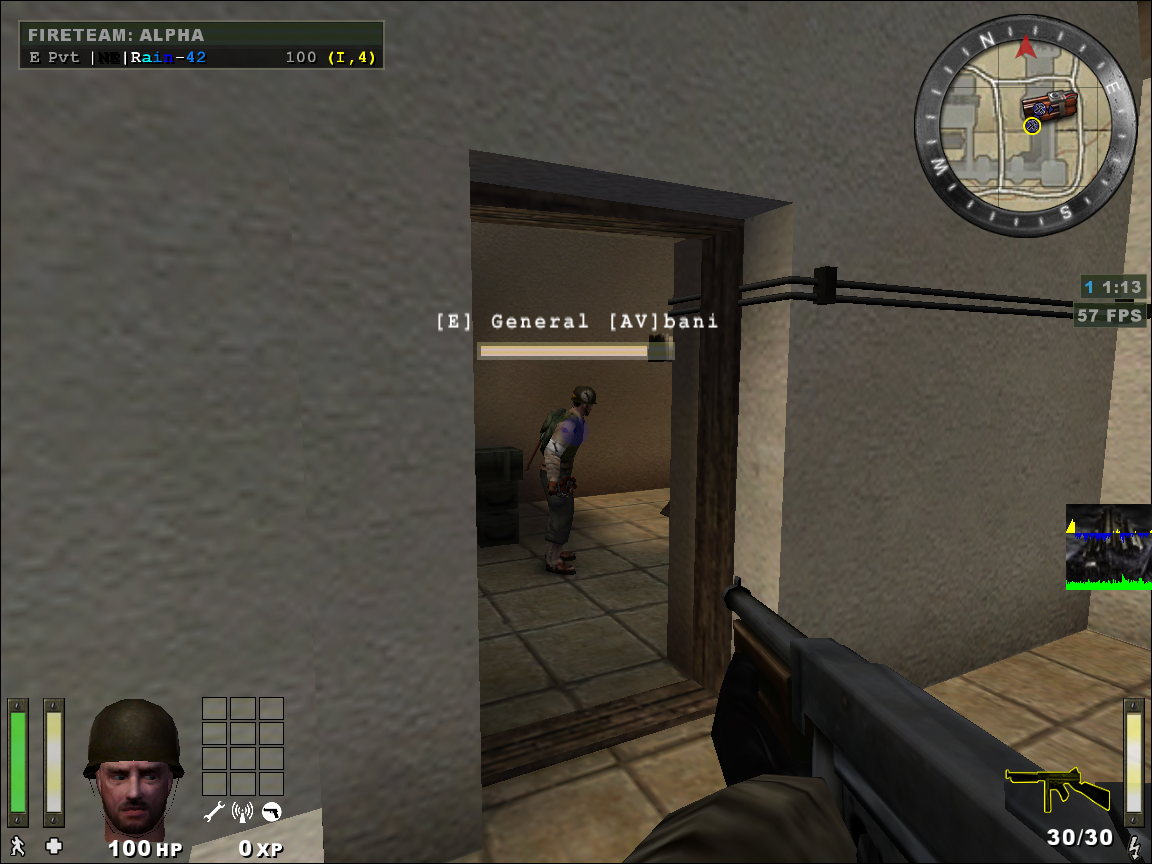

(Dies Irae) #12

If the solutions posted above here dont work for you maybe could be a color correction problem, Nvidia cards have a color correction settings, and some times they get messed up in certain games. (too red, too blue, too green… RGB :P)

but if you take a screenshot of it it looks just fine.

The solution: go to display properties/settings/advanced/Geforce tab/color correction/ and change from ALL CHANNELS to each color channel (red, green or blue) then adjust the values of each color until you have the desired result, save it as a color profile (remember to save your curent settings first) and run that color profile each time you run that game.


(thelastname) #13

It seems to me it’s you monitor that is giving you the problem, what you are explaing seems to be symptons of a bad monitor, can you try a diiferent monitor?


(Unoturbo) #14

Look at the first picture, the purple blobs on the gun. It sure as hell don’t look like that on mine.

The thing is, my mate has exactly the same Graphics card and it looks the same on his.

If you have have the Nvidia thing next to the clock, try changing from performance settings to quality.


(SCDS_reyalP) #15

The purple blobs could be due to 16 bit color and/or texture compression. ISTR ydnar mentioning that some nvidia drivers force texture compression even when the application doesn’t request it, depending on control panel settings.

Failing or overclocked video cards can also produce weird colors in textures, but it is usally more extreme than that.

I have never noticed that on my sytem, perhaps because I keep drawgun off :stuck_out_tongue:


(Rain) #16

Just for… uh… fun, here are some texture corruption screenshots: http://themuffin.net/corrupt/
They’re all pretty extreme, save for the last one (note the health bars and charge bar.)

The cause of all this? A fair bit of dust had managed to accumulate under my card’s heatsink and mingle with the thermal paste at the edges of the RAM, causing just enough capacitance to aggrivate one or two of the RAM chips. After cleaning things up and applying new paste, all has been well for many months. :fiesta: