
If you got some helpful Tips & Tricks, let’s collect them and post them here 
Tips & Tricks
Joe999
(Joe999)
#2
Steam requires too much memory
switch it to “Small mode” in the menu: View -> Small mode
you’ll see Steam’s memory decrease in task manager
How to create a custom configuration
obviously Brink overwrites some of the data you put in the console. in order to still use custom settings like skipping the intro at game start, you need to create an autoexec.cfg file which you have to put at
C:\Steam\userdata<userid>\22350\local\base
example:
////////////////////////////////////////////////////////
//
// put this into C:\Steam\userdata\<userid>\22350\local\base\autoexec.cfg
//
////////////////////////////////////////////////////////

// console to tilde only, it would be otherwise ctrl+alt+~
seta com_allowconsole "1"

// skip intro
seta com_bootLogo "0"

// create detailed log file
seta logFile "1"
seta logFileName "logs/console_$Y_$M_$D_$h_$m_$s.log"
seta logTimeStamps "1"
My autoexec.cfg doesn’t have an effect
This might be because some cvars like the logfile settings are loaded from brinkconfig.cfg first and after that the autoexec.cfg gets loaded. So if you want to see the changes of some cvars in your autoexec.cfg, you have to start brink, end it (new brinkconfig.cfg gets written with data from autoexec.cfg), start it again.
How to create new log files per game start
// create detailed log file
seta logFile “1”
seta logFileName “logs/console_$Y_$M_$D_$h_$m_$s.log”
seta logTimeStamps “1”
How to skip the intro
seta com_bootLogo “0”
How to allow console (tilde key)
seta com_allowconsole “1”
Where is the console log located?
C:\Steam\userdata\<userid>\22350\local\base
you can add a folder to logFileName, like i did in my example above. then the log files would be e. g. in
C:\Steam\userdata\<userid>\22350\local\base\logs
Where are the screenshots located?
C:\Steam\userdata\<userid>\22350\local\base\screenshots
Neurological
(Neurological)
#3
Still no sound issue?
I still had the no sound issue after trying every fix posted over the internet, but I have found a cause and solution that may have also others.
The cause was the BINK videos muting my sound, so everytime the intro and tutorial videos started the sounds were gone.
So as first thing I suggest to skip the intro squences like explained by Joe999 on the previous post, then all you have to do is to avoid starting the videos, like the tutorials ones. For the outro videos obiviously you can’t do much, but now you may be able to play the game without problems for the sounds.
PS: I’m not referring to the sound issue in certain maps, I don’t know if this solution can fix that too.
How to change game language?
Steam offer the feature to change language of the game at any time, voices included. All you have to do is:
1- Go to your games list of Steam
2- Right click on Brink
3- Select Properties
4- Select the Languages tab
5- Select a language and close the tab
Brink will start updating the game downloading the required files for voices and texts.
Joe999
(Joe999)
#5
Steam shows “This game is currently unavailable” error message
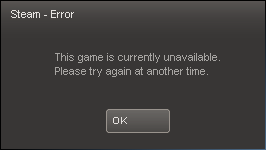
This happened to me when i started the brink.exe directly from windows explorer, not out of the steam client. First a “connecting to steam” message popped up and after that the error message showed up.
When i checked the steam client, it showed that a brink update was downloading. After the download completed, the game worked again, ie “was available”.
Since Steam knows that it’s updating, this error is one that could easily have a proper message instead of pissing off people by saying “the game is currently unavailable” for no special reason.
Joe999
(Joe999)
#6
How to take screenshots without the UI stuff
here’s an example script “screenshot.cfg”, put it into C:\Steam\userdata<userid>\22350\local\base
you probably need to adapt it to your UI default settings after the screenshot command:
#
# use this script eg with:
#
#   bind F10 "exec screenshot.cfg"
#
# spectating:
#
# go into spectator mode and use the following cvars
#
#   cvars:
#     g_spectateFreeFly "1"
#
#   commands:
#     setSpectateClient 0
#
#

# hide UI stuff
g_showHud "0"
g_friendlyColor "0 0 0 0"
g_friendlyTextColor "0 0 0 0"
g_friendlyBotColor "0 0 0 0"
g_friendlyWeaponTintColor "0 0 0 0"

# take screenshot
screenshot 1600 900 32

# show UI stuff again
g_showHud "1"
g_friendlyColor "1 1 1 1"
g_friendlyTextColor "1 1 1 0.9"
g_friendlyBotColor "0.75 0.75 0.75 0.9"
g_friendlyWeaponTintColor "1 1 2 1"