Lightrays


(retredmadcat) #1

hey

question…
i really want to make lightrays coming from holes in the ceiling of my map… i thought of a was of doing this, but im not 100% sure if it can be done (i think it can) and i cant do it myself lol :stuck_out_tongue:

first, is it possible to make like a cone of light rays coming from a hole by using a light entity or any other thing in radiant?

Lightrays… im not even sure its the correct name in english :stuck_out_tongue: but i want something like this (but from above, in a cone shape):

How i thought it would be possible:

  • Make a cone brush which will be the light ray
  • Texture it with a very low opacity of white/yellowish color and make it non-solid

i guess that would work or?
But for some reason i cant get my custom textures to work in my map … its not pk3 yet, only bsp and i can see the texture in radiant but not in the game (yellow+black thing in game) … its in the shader and in the right map etc… i dunno what’s wrong?


(kamikazee) #2

That’s the way it’s done.


(WeeBull) #3

there already is a texture like this, it’s in the sfx folder called beam_dusty or something.


(retredmadcat) #4

really? cool
gonna try it now


(retredmadcat) #5

ok i tried it and its not what i wanted… the light rays are coming down only 10 cm’s orso before fading away already, i want them to come all the way to the ground…
gonna try and make my own now…

ok it didnt work…
what i did:

  • made a texture in paint (single color) and saved it as “lightray.jpg” (size 128 * 128)
  • put this jpg file in “etmain/textures/sfx” (so you get textures/sfx/lightray.jpg)
  • opened the “sfx.shader” file and added:

textures/sfx/lightray.jpg
{
	qer_trans	0.3
	cull none
	nocompress
	surfaceparm nomarks
	surfaceparm nonsolid
	surfaceparm pointlight
	surfaceparm trans
}

i know i didnt add anything so it would be transparent ( a bit, not 100%) because i dont know how…?

Then i went into ET, loaded the map with sv_pure 0 /map [mapname] and it loaded fine, lights worked perfectly (yes i compiled with lighting stage etc) but the lightray cone i made was NOT nonsolid (it was solid) and it was (ofcourse) not transculent…

it did have the right texture this time… it was yellow/white-ish… so i guess the shader file works? but why isnt it nonsolid then?! i dont get it… :\
and how do i make it transculent for 10% orso…? :???:


(iwound) #6

Maybe increase the scale of the original texture to stretch it out too the required length.
in radiant i mean.


(retredmadcat) #7

i tried, but we’re talking about increasing it about 10 times (in length only) then… which makes the texture extremely pixely… (is that even a word? :smiley: )


(WeeBull) #8

yeah that might be the easiest way, but if you can’t get it done you need to add an alpha channel to make the texture transparent. this can be done easily in programs like photoshop or paint shop pro, you could download a trial version of one of them, personaly i like photoshop.
i can’t explain you how to add an alpha channel right now, but there should be some tutorials about that somewhere on the web, just google.


(retredmadcat) #9

i dont know exactly what an aplha channel is, but my guess is that its the thing used in the beam_dusty2 texture i tried…
i think it’s a color (like black) which you set to be transparent, so in game all black pixels are transparent?

thats not what i want… my texture is a single color already, and i want it to be semi-transparent… (like 20% visible orso)

or am i wrong about what an alpha channel is? :clap:


(Shaderman) #10

textures/sfx/beam_dusty2 is a shader which uses textures/sfx/beam_1.jpg (a very small image without an alpha channel).

i think it’s a color (like black) which you set to be transparent, so in game all black pixels are transparent?

Yes, an alpha channel works like this. Besides the RGB colors (channels), it’s a greyscale channel with a range from black to white.

thats not what i want… my texture is a single color already, and i want it to be semi-transparent… (like 20% visible orso)

I suggest you have a look at textures/sfx/beam_1.jpg to see how it’s made and write your own shader like beam_dusty2 to use it. A higher image resolution should give a better result.


(retredmadcat) #11

ofcourse i looked at the image beam2_dusty uses… and i concluded that it DOES use an alphachannel… its a “line” of black with at the top a fadein to white… and in the game, the black is transparent, and the fade in from black to white therefore fades from “nothing” to white…

but that’s not what i want…
i want the WHOLE brush to be semi-transparent
like a window with glass for instance… i looked at glass textures and they all had surfaceparm glass, which didnt change anything with my texture…

also, i think the shader is not working properly
it does take the right image in the game, but it does not have the right properties… its still solid, it still has shadows and is affected by lighting like explosions etc… while the shader tells it not to be :???:


(WeeBull) #12

a totally black color on an alpha channel means that it’s transparent in game, a white color means that you can’t see through it and something grey-ish between black and white means it’s semi-transparent in game.


(Chruker) #13

The ET Depot map has light rays coming through a window at the allied spawn: http://www.fidel.vido.info/show/maps/et_depot_by_fidel_castro.zip

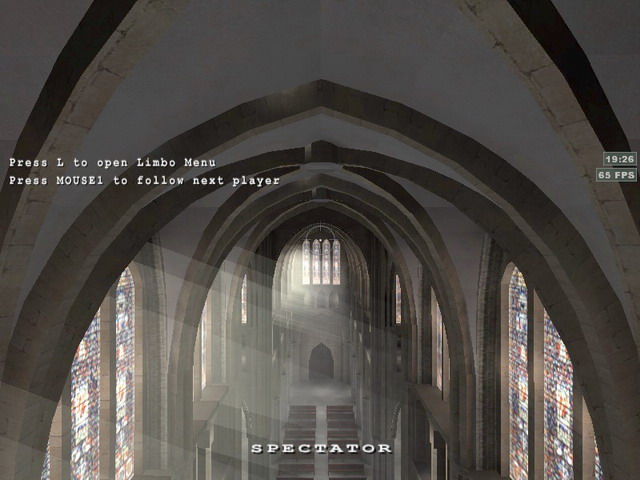
Also Cathedral has light rays coming through the big windows.


(retredmadcat) #14

i know, i know, but its not the type of lightrays i want! :stuck_out_tongue: mine are in a rather dark area so you can see the WHOLE ray of light untill the ground, and a circle of light on the ground…

and something grey-ish between black and white means it’s semi-transparent in game.

So what would happen if i made the whole image grey-ish ? the whole image would be semi-transparent? (which is what i want)
but how do i color it then? i dont want it to be gray :blah:


(Shaderman) #15

I’d say you need an image with alpha channel then :slight_smile:


(Chruker) #16

This is a screenshot from Cathedral:

You can just extend the ray brush into the ground, and then hope your lightmap ligns up with the ray.