
The alpha channels should be seamless (a good way of doing that is to just copy the RGB channel of your texture into your alpha channel), and the alpha channels should be ~85-90% bright. A good thing to do is play ET in windowed mode while Photoshop is open in the background–that way, you can edit the brightness of your alpha channels and then just /vid_restart to see what you need to do to get the exact result you’re looking for.
Terrain Alpha Blending
Loffy
(Loffy)
#62
Hi!
Following sock’s and rgoer’s ideas, I was able to produce this:
http://a.domaindlx.com/loffy/testmap1.jpg
The thing to look for, in the image, in my opinion, is the merger between grass, dirt and rock. Look at the cliffs edge, near the MG. See how grass blends into dirt, then into rock.
The terrain is brushwork. I just did the step by step tutorial by sock (the “rock tutorial”).
Used three tga’s. The “base” is a dirt one. The other two are grassy and rocky. The special shader (I used rgoer’s) paints dirt all over - however it makes flat areas grassy and steep ones rocky. Any surface between flat and steep is kept dirty.
Dirty mapping. Rock on!
// Loffy
HairyPlums
(HairyPlums)
#63
Nice Loffy!
Here’s my own first successful attempt following rgoers detailed explanation of the alpha channel stuff - just a first go! The terrain you see here is an ASE model…
http://www.battlefieldeurope.org/wildwest/dotprod2
I’m gonna check out more subtle blending & experiment with the angles next. I sometimes think Ydnar is God, and sock is his phrophet :p.
Gringo_Starr
(Gringo Starr)
#64
Sorry guys, I’m totally ripped from New Year’s Eve!!!
Why doesn’t this shader result in dotproduct2?
// ======================================================================
// Terrain blending
// ROCK -> GRASS
// ======================================================================
//
textures/ww_machogrande/ma_redrockz
{
   qer_editorimage textures/ww_machogrande/ma_redrockz.tga
   //q3map_lightImage textures/sock_terrain/grass_1.tga

   q3map_forceMeta
   q3map_nonplanar
   q3map_shadeAngle 179
   q3map_lightmapAxis z

   q3map_tcGen ivector ( 2048 0 0 ) ( 0 2048 0 )
   q3map_tcMod rotate 33
   q3map_alphaMod dotproduct2 ( 0 0 0.1 )
   q3map_lightmapSampleSize 64
   q3map_globalTexture

   {
      map textures/ww_machogrande/ma_redrockz.tga
      tcMod scale 8 8
      rgbGen identity
   }
   {
      map textures/ww_machogrande/ma_whiterock2z.tga
      blendFunc GL_SRC_ALPHA GL_ONE_MINUS_SRC_ALPHA
      alphaFunc GE128
      rgbGen identity
      alphaGen vertex
      tcMod scale 8 8
   }
   {
      map $lightmap
      blendFunc GL_DST_COLOR GL_ZERO
      rgbGen identity
   }
   {
      map textures/ww_machogrande/ma_redrockz.tga
      blendFunc GL_DST_COLOR GL_SRC_COLOR
      rgbgen identity
      tcMod scale 4 4
      detail
   }
}
The ma_redrockz.tga has a dark alpha channel, which is contrary to what rgoer recommended. Let me know if there’s anything obviousl that pops out at ya.
Gringo_Starr
(Gringo Starr)
#65
BTW, if anyone picked up on this…yes the name of my next map is Macho Grande. Where George Zip lost his marbles. 
gerby
(gerby)
#66
Just out of curiosity, because the alpha channel is supposed to be just off total, does this mean that even if a surface is only supposed to be one of the shader layers, it still gets both passes (plus additional from say lightmaps etc)?
Seems like having an entire terrain of multiple shader passes might get a touch expensive FPs-wise, given the old terrain method didn´t have this.
I haven´t tried it, so can´t say which it does, can anyone say how it works, are there always multiple passes?
sock
(sock)
#67
A standard terrain will generally have 2 passes with sections that have 1 texture only and 3 passes where any alpha blends occur. If you are using detail layers then it will be 3/4 passes. The ET terrains were mainly 4 passes because blended areas always look better than standard 1 texture areas.
The slightly new terrain system (no manual alpha map creation) is a constant 3 shader pass system all the time. So with a detail layer you will get 4. But detail layers can be turned off via the console for extra performance. The alpha blend is active all the time, But for vertical rock walls I used a single texture. This makes it similiar to the original ET terrain.
Nice too see you are creating some rockstuff!
The dotproduct2 values you are using are too low. Try 0 0 0.825 first to see if the shader is working, or create a special boxmap with some bumpy terrain.
Q3 map files should open fine in SDRadiant, you maybe have some missing textures but the basic brushwork/patch meshes should load fine.
You should let Ydnar know about this and have a sample test map ready as well. Create a new post in the Q3map2 forums.
Sock
:moo:
hhhmmmmm
(hhhmmmmm)
#68
Hehe, I made a really bad ctf with half off safe, but i lost it on along with last install , good job too, it was a crime what i did with it  :bash:
Them terrains look sweet as though 

Is there a new WildWest in the pipelines ???
michi.be
(michi.be)
#69
You should let Ydnar know about this and have a sample test map ready as well. Create a new post in the Q3map2 forums.
Yes i will do. I managed to reproduce the error then i compile with -notjunc.
But today our ISP had a HDD crash and our mapping page is lost. lots of work to do to even reupload our video-tuts. :-/
@desert mapmakers.
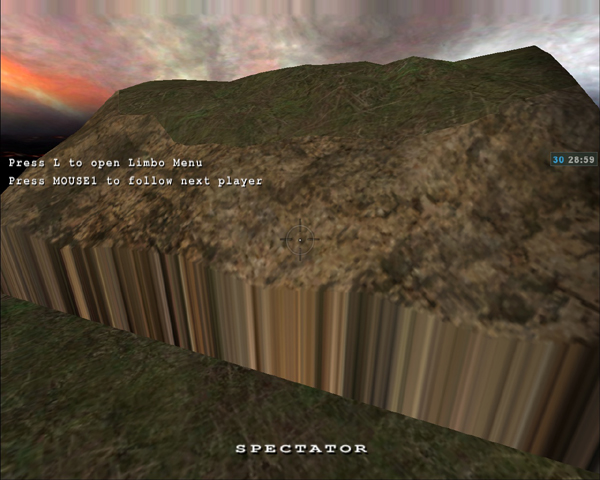
Why don’t you guys use the skyportal. personal i dont like the skybox textures because they are looking flat. some small model or brush canyons combined with this nice “floating cloud” skies from ET would look better.
Loffy
(Loffy)
#71
I got the same (smear on vertical surfaces).
Put an ordinary texture there, and it will be fine.
You live in Honolulu? Cool!
// Loffy
Shai
(Shai)
#73
I was wondering if anyone could tell me if this is the way its supposed to look or not:
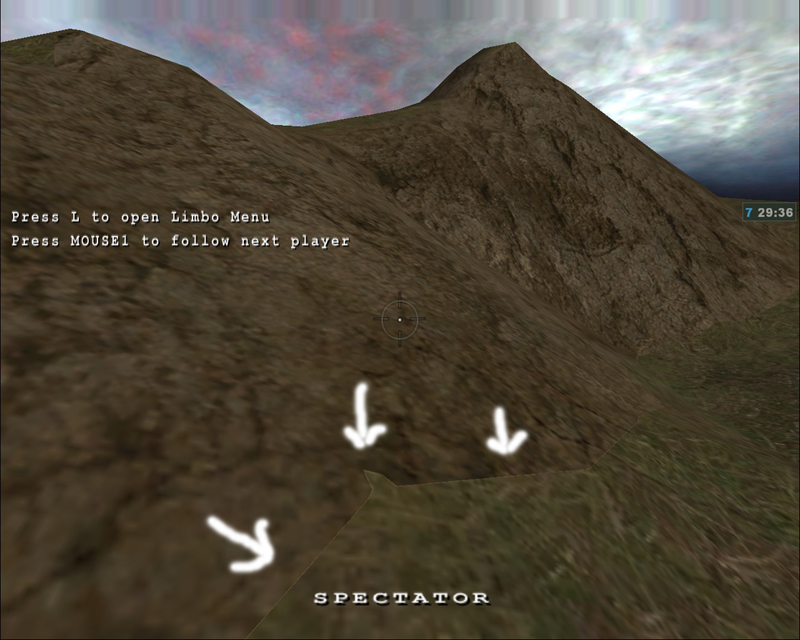
Notice how the grass doesnt really blend in? Theres almost a solid line seperating it.
I’ve used the shader example rgoer posted and changed the q3map_alphaMod dotproduct2 to ( 0.1 0 0.8 )
MindLink
(MindLink)
#74
That screenshot almost looks like you forgot the “shadeangle” line in the shader… Are you sure you copied it exactly from rgoers example and got the alpha channels of the textures right?
rgoer
(rgoer)
#75
The most likely culprit for your blending problems is the alpha channel for one of your textures (maybe both). Open it up in photoshop, do a “select all” in the RGB channel, copy that, make sure there is, in fact, an alpha channel, then paste your RGB data into the alpha channel. Now do another “select all” in the alpha channel, and either adjust the levels or run “brightness/contrast” operations until the alpha channel is approximately 90% to 95% bright. Then /vid_restart your map and see how it’s working.
sock
(sock)
#76
The shader will only project the terrain blend in one direction, well it can be a combination of angles but basically from one direction.
The line in the shader is “q3map_tcGen ivector ( 512 0 0 ) ( 0 512 0 )” which affects which way the texture will be projected. So if the surface is not the right way round you get the above issue in your image.
The way to fix that is gradually blending to the base texture and then do normal texture painting as in the image below:

The terrain is the wacky checkered textures and the vertical cliff face is my base terrain texture. (In this example is rock) Allow enough blend points between the edge of the cliff face so that the alpha blend for the top terrain material has gone to nothing and left just the base texture (grey rock in my example).
Sock
:moo:
joop_sloop
(joop sloop)
#77
Aparently photoshop 7 and older have trouble saving targa’s with an alpha channel… There is a patch out for that so you might want to check out this page if you have photoshop 7
(thnx salteh & digibob :))
rgoer
(rgoer)
#78
Actually, it’s only Photoshop 7.0 that has this problem. Versions prior to 7.0 are fine, as are 7.1 and later. All you really have to do is replace the Targa.8BI file that shipped with 7.0 with the one from 6.0 if you want to fix. Google for Targa.8BI, you’ll probably find a replacement.
joop_sloop
(joop sloop)
#79
I fixed it by downloading the plugin you can find on the link I gave…
But now that I can make alpha channels, I can’t get the blending to work properly 
Gonna spend all this weekend to get that working
Siemnov
(Siemnov)
#80
You know, that problem is gone with psp 8. I’m a flashguy too and when I got psp 8 I could finally use pics with an alpha channel  . That made a lot of things easier.
Btw. Sock, do you have a fanclub or something?
I guess you really don’t have time for that though…